![KG logo sininen.png]](https://support.eduhouse.com/hs-fs/hubfs/KG%20logo%20sininen.png?height=40&name=KG%20logo%20sininen.png)
Once you've filtered the Digital Classroom listing the way you want, you can share the same view with another person using a link. The link preserves all of your selected settings, such as the subject area, date range, sorting options, and other filters.
After filtering the Digital Classroom listing as desired, select Copy link. This creates a link that includes all of your selected settings:
- The selected subject area tab
- Search terms
- Applied filters
- Sorting order
- Start and end dates
Copy the link and share it however you prefer, for example by email.
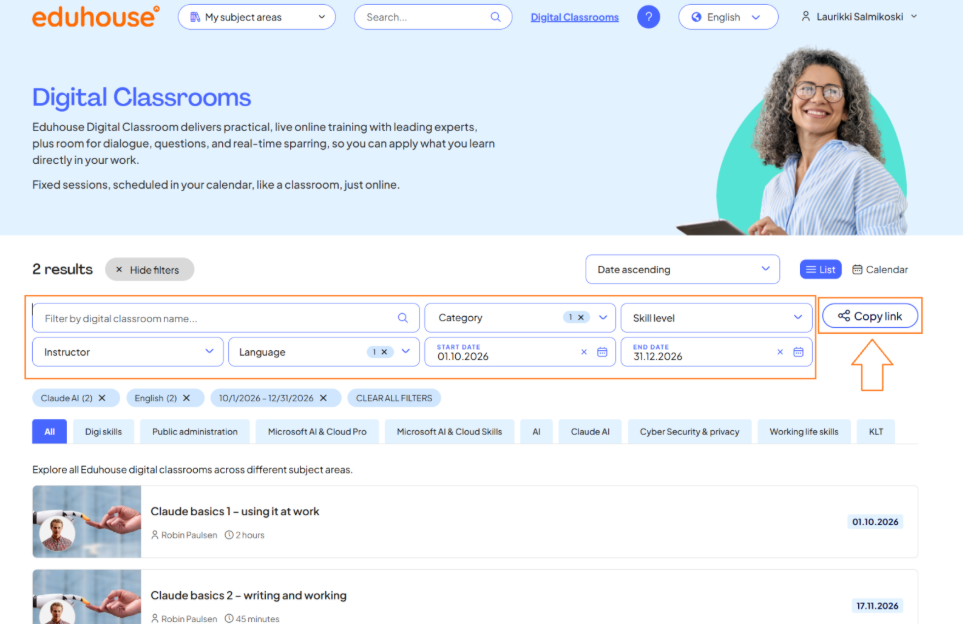
When the recipient opens the link, they will see the same filtered view as you, provided they have access to the Digital Classrooms included in the view. If the information contained in the link does not match the recipient's access rights, or if the link contains outdated or invalid information, the page will automatically redirect to the default Digital Classroom listing view.
When is sharing a view useful?
Sharing a view makes it easy to recommend specific Digital Classrooms to a colleague without requiring them to apply the same filters themselves.
For example, you can share a link that displays:
- All AI Digital Classrooms taking place during the next month
- Upcoming Digital Classrooms within a specific subject area
- Digital Classrooms filtered by a specific keyword
- Digital Classrooms taking place during a specific date range
This allows the recipient to access the correct view with a single click.