![KG logo sininen.png]](https://support.eduhouse.com/hs-fs/hubfs/KG%20logo%20sininen.png?height=40&name=KG%20logo%20sininen.png)
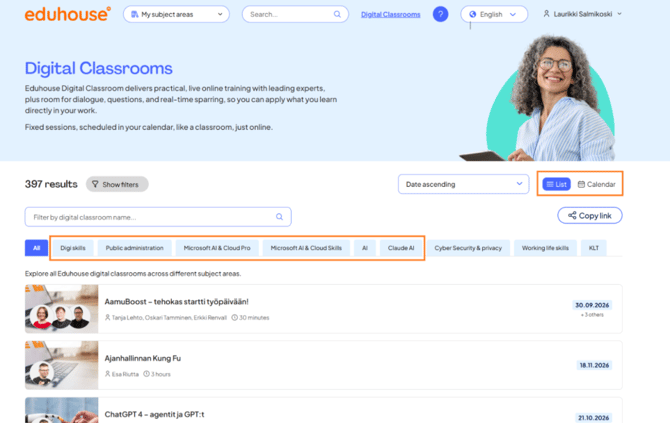
When you open the Digital Classroom listing, you'll see tabs at the top of the page: All, along with separate tabs for each subject area, such as Digiskills, Public Administration, Microsoft AI & CloudPro, AI, Cyber Security & Privacy, and Power Skills.
- If you're not signed in, you'll see all publicly available subject areas and Digital Classrooms, including pricing information. You can browse the available trainings and decide which ones you'd like to join.
- If you're signed in, you'll only see the subject areas and Digital Classrooms included in your organisational licence. Subject areas that are not available to you are hidden automatically, so you'll only see trainings that are relevant to your subscription.
Training Views
You can view the trainings in two different ways:
List View
In List View, each Digital Classroom displays:
- Training thumbnail image
- Training title
- Trainer
- Training duration
- Date of the first session (along with information about any additional sessions)
- Price, if the training is chargeable for you
Calendar View
In Calendar View, Digital Classroom sessions are grouped by month. You can easily see:
- How many sessions are scheduled for each month
- The training date
- The training title
- The trainer
- The training duration
- The price
Filtering Digital Classrooms
You can narrow down the training listing in the following ways:
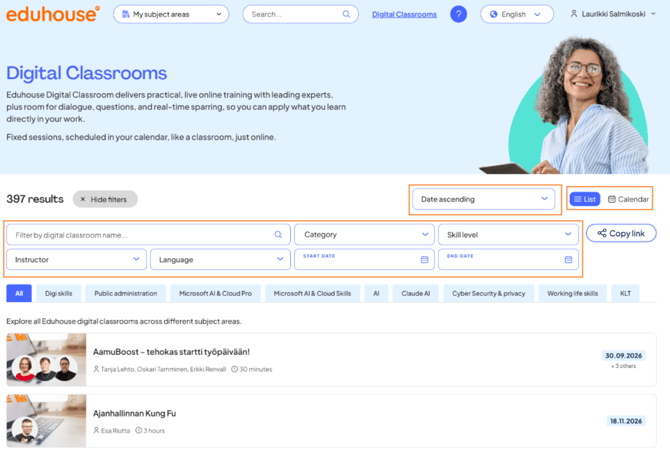
- Use the search field to find a Digital Classroom by name
- Set a Start Date and End Date to display only those Digital Classrooms whose first session falls within the selected date range
- You can also sort the training list in your preferred order
💡Note: Sorting is only available in List View. In Calendar View, Digital Classrooms are always displayed in chronological order, with the upcoming sessions shown first.
Signing Up for a Digital Classroom
Once you've found a Digital Classroom that interests you, the registration process depends on whether you're signed in or not. For more information, see: "How do I sign up for a Digital Classroom?"