![KG logo sininen.png]](https://support.eduhouse.com/hs-fs/hubfs/KG%20logo%20sininen.png?height=40&name=KG%20logo%20sininen.png)
Instructions and quick links:
-
What happens when two owners edit the study plan at the same time?
-
What happens when an owner's rights change or they leave the organization?
What does co-ownership mean?
Until now, a study plan has had one owner: the admin who created it. Now the owner can add other admins as co-owners of the study plan.
All owners have the same rights. Every owner can:
- Edit the study plan
- Share the study plan with users and change the sharing
- Send reminders
- Hide or remove the study plan
- Track completions in the organization report
- Add and remove owners
Co-ownership is useful, for example:
- during holidays and other absences
- when the person who created the study plan changes roles or leaves the organization
- when you want to divide the upkeep of study plans among several people
💡 Nothing changes for the users the study plan is shared with.
Who can be a co-owner?
- You can add an admin from your own organization who sees all users in the organization report
- You need the same right yourself to manage the owners of a study plan
💡 If you do not see "Manage ownership" in the menu, or a colleague is missing from the list, the organization report rights are probably limited, for example to one department.
How do I add a co-owner?
- Open the study plan from the Study plans tab in your profile
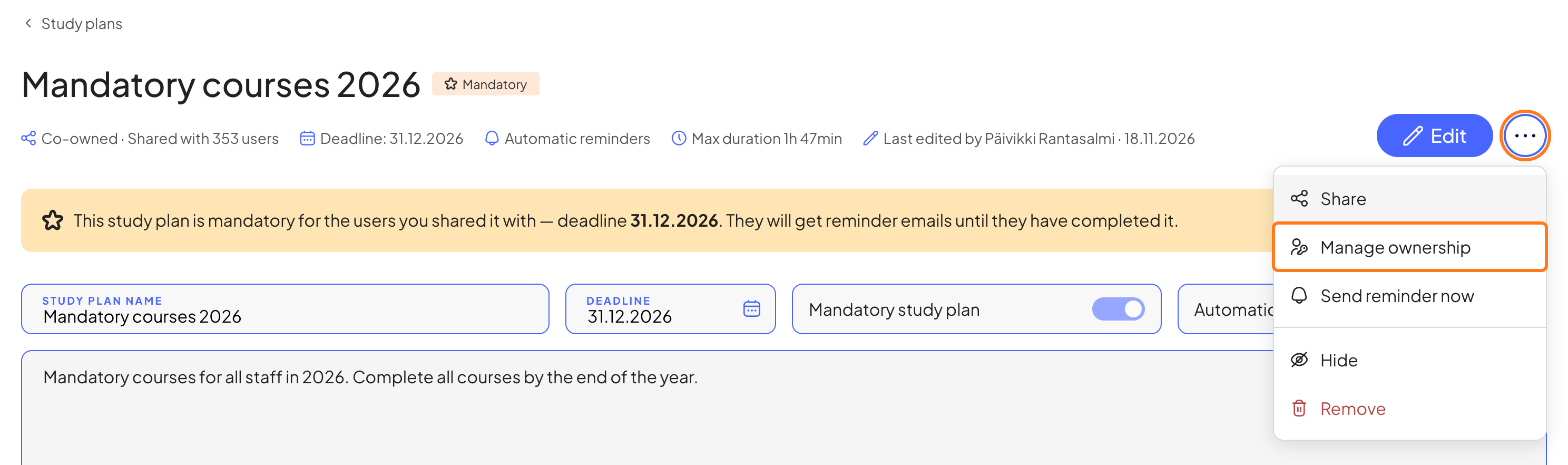
- Click the three-dot button (More actions) next to the "Edit" button and choose "Manage ownership"
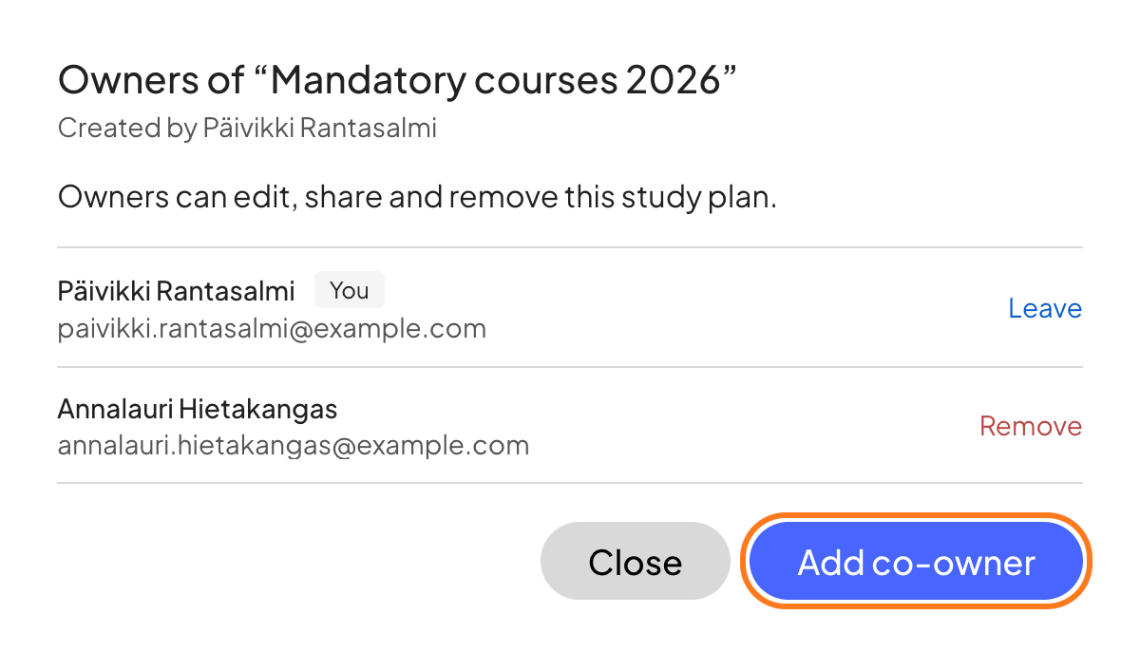
- The window that opens shows the owners of the study plan and who created it. Click "Add co-owner"
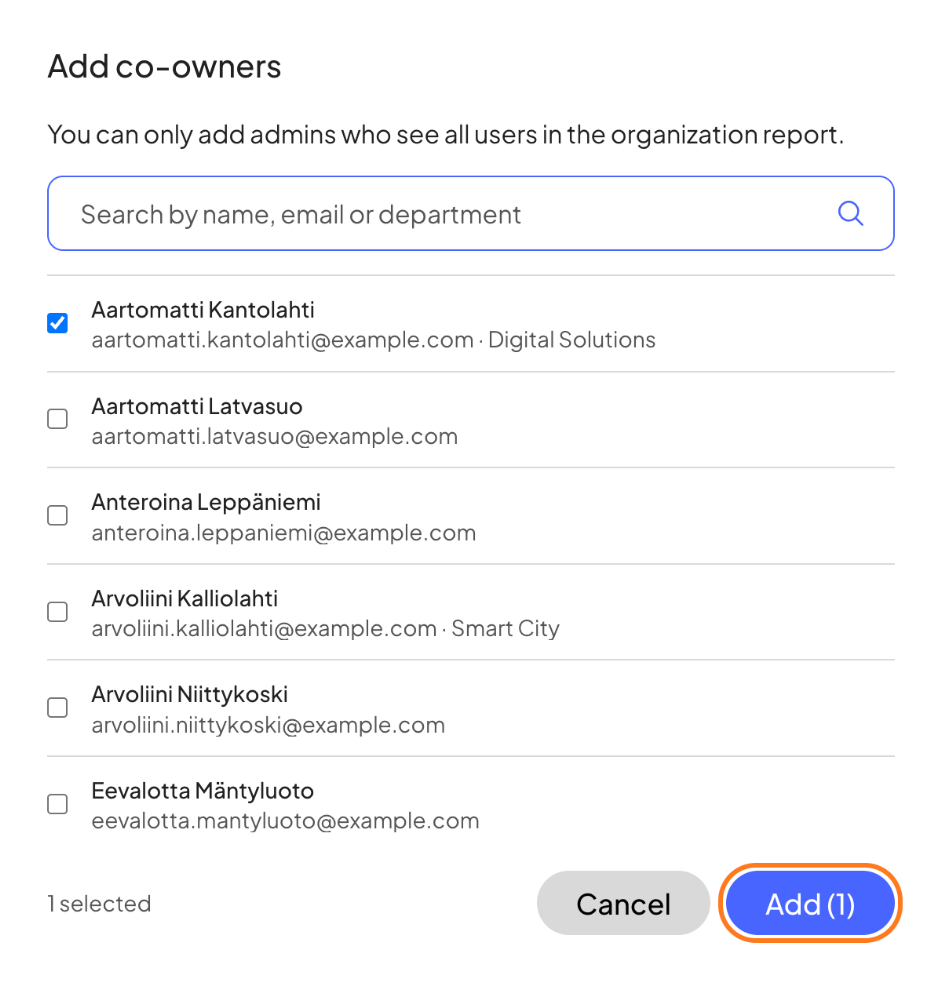
- Choose one or more admins from the list. You can search by name, email or department
- Click "Add"
💡 The new co-owner gets an email with a direct link to the study plan. The study plan shows on the "My plans" tab of their Study plans page.
💡 The same three-dot menu now also holds the other actions of the study plan: "Share", "Send reminder now", "Hide" and "Remove".
How do I recognize a co-owned study plan?
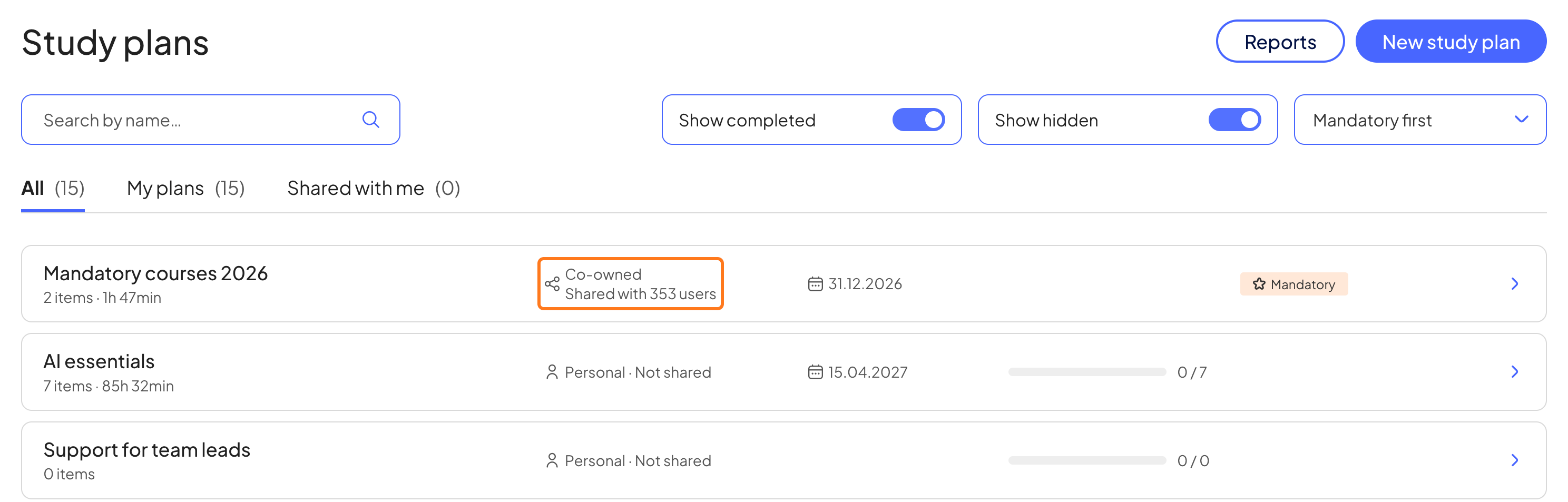
- The list on the Study plans page and the study plan's own page show the label "Co-owned"
- The study plan's page also shows who edited the study plan last and when
- To see all owners and who created the study plan, choose "Manage ownership" in the menu
How do I remove an owner or stop being an owner myself?
- Open the study plan and choose "Manage ownership" in the three-dot menu
- Choose the action:
- Remove another owner by clicking "Remove" on their row. They can no longer edit or share the study plan
- Stop being an owner by clicking "Leave" on your own row. You can no longer edit, share or remove the study plan, and the other owners keep it
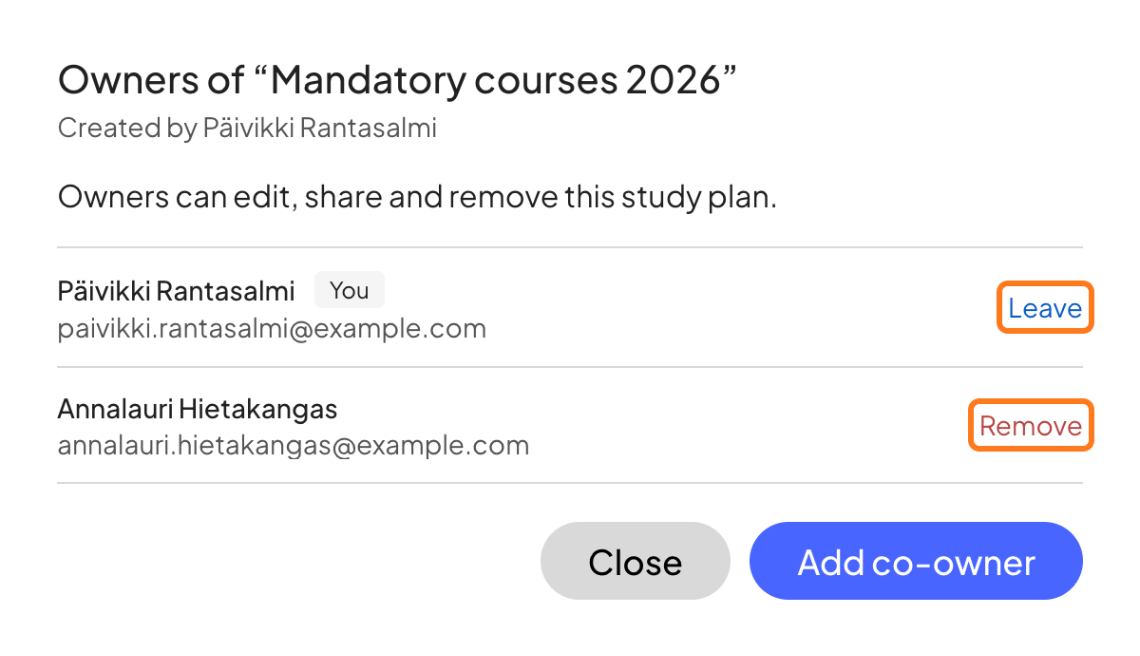
💡 A study plan always has at least one owner. "Leave" and "Remove" show only when there is more than one owner.
What happens when I hide or remove a co-owned study plan?
- When you click "Hide", the study plan is hidden for you, the other owners and the users it is shared with
- When you click "Remove", the study plan is removed for you, the other owners and the users it is shared with. This cannot be undone
What happens when two owners edit the study plan at the same time?
- If another owner saves changes while you are editing the study plan, the service tells you when you try to save
- Click "Reload" to see the latest version
- Your unsaved changes are lost, so make them again in the reloaded version
What happens when an owner's rights change or they leave the organization?
- The study plan stays in use and the other owners keep it
- If a co-owner no longer sees all users in the organization report, they are removed from the owners automatically
- Nothing changes for the users the study plan is shared with
💡 Add at least one co-owner to important study plans. If the only owner of a study plan leaves the organization, nobody can edit the study plan any more.
How does co-ownership show in the organization report?
- Every owner sees a co-owned study plan on the Study Plans tab of the organization report
- Every owner sees all the users the study plan is shared with
- The study plan's details show its owners
- Owners are not counted among those completing the study plan, and they do not get reminders about it