![KG logo sininen.png]](https://support.eduhouse.com/hs-fs/hubfs/KG%20logo%20sininen.png?height=40&name=KG%20logo%20sininen.png)
Guide contents and quick links:
📚 What is a mandatory study plan?
Mandatory study plans enable organizations to:
- Set study plans as mandatory and assign deadlines to ensure your team completes essential training on time
- Send automatic and manual reminders for completing study plans. Automatic reminders are sent 30, 7, and 1 day before the deadline. Manual reminders can be sent at any time
- Track learning progress effortlessly in the new study plan view with and organizational report that shows completion rates and individual progress
This feature is typically used for:
- Employee onboarding
- Recurring compliance training
- Organizational learning and development
✍️ How do I create a study plan?
- Go to the Study Plans tab in your profile
- Click "New Study Plan"
- Enter a name and click "Create Study Plan"
- Add training content by clicking the blue bookmark icon next to courses.
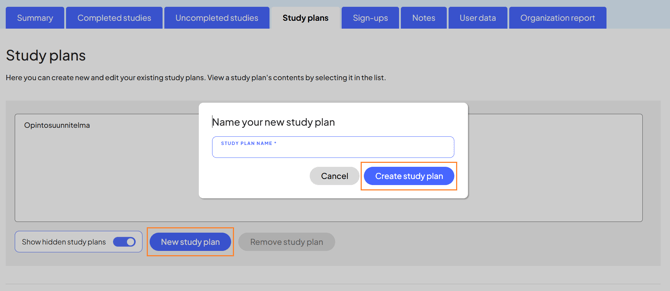

💡 Read more about creating study plans here: How can I create study plans?
⏰ How do I make a study plan mandatory?
- Click "Edit" and then "Make study plan mandatory"
- Set a deadline (required)
- Enable automatic reminders (optional)
- Click "Save
- Study plan is now ready to be shared
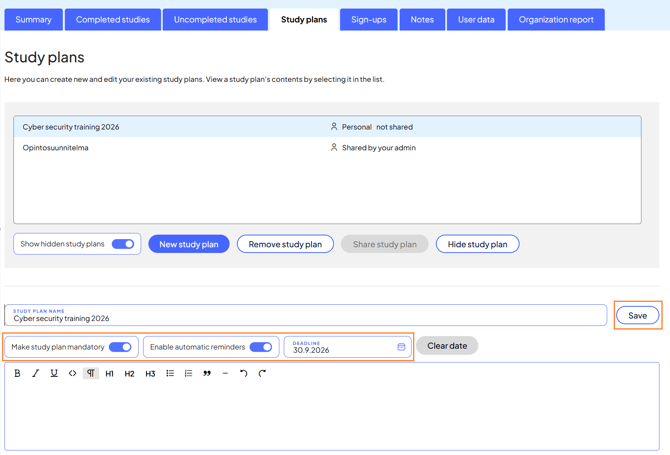
💡 A mandatory study plan must have a deadline and cannot be shared without content.
🔔 How do automatic reminders work?
When a study plan is set as mandatory and has a deadline, users who have not completed it will receive reminders:
- 30 days, 7 days, and 1 day before the deadline
- Sent daily at approximately 8:00 AM (user’s timezone)
Users who have not completed the study plan will also receive notifications when:
- A study plan is changed from non-mandatory to mandatory
- The content or deadline of a mandatory study plan is updated
💡 You can also send a manual reminder anytime by clicking "Send reminder now" to users who have not completed the study plan yet.
📤 How do I share a mandatory study plan?
- Open the study plan from the list
- Click "Share study plan"
- Select the audience:
- All users (also shared automatically with new users)
- Selected users (choose users from the list)
- Click "Share study plan"
Users will receive an email notification with a direct link to the study plan
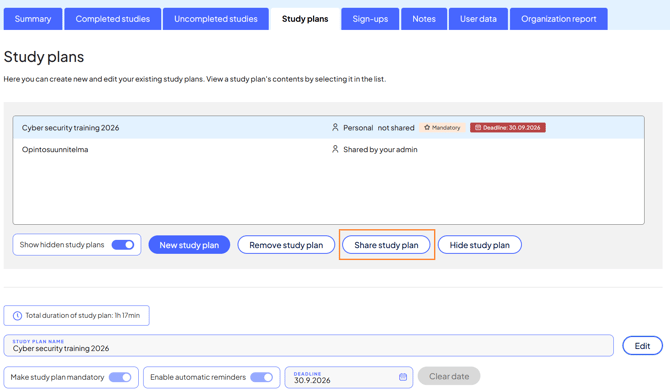
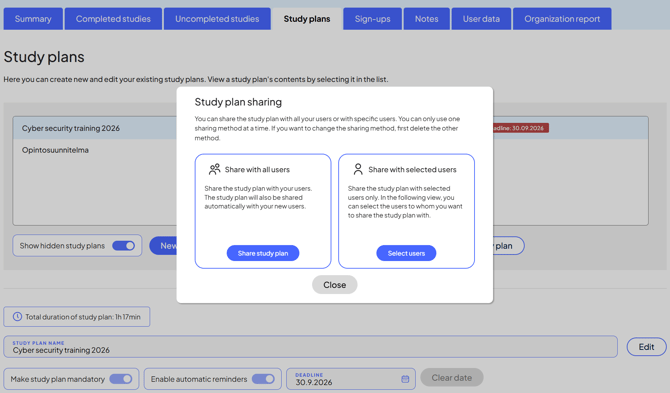
💡 If automatic reminders are enabled, users will receive reminder emails 30, 7, and 1 day before the deadline.
✏️ How do I edit a mandatory study plan?
-
Open the study plan and click "Edit"
-
You can update:
-
Name
-
Deadline
-
Mandatory status
-
Automatic reminders:
-
If disabled, reminders stop immediately
-
-
Description
-
Content
- Orders of the courses
-
-
Save changes by clicking "Save"
💡 Users who have not completed the study plan will be notified if the deadline or content changes.
👥 How do I update study plan sharing?
- Open the study plan from the Study Plans tab
- Click "Share study plan"
- Update the audience:
- Remove "Share with all users" if switching to selected users
- Or add new users
- Click "Share study plan"
💡 New users will receive an email notification.
❌ How do I remove study plan sharing?
- Open the study plan
- Click "Share study plan"
- Remove sharing from all users by clicking "Stop sharing"
- Remove specific users by selecting them and clicking "Stop sharing"
🗑️ How do I hide or delete a study plan?
- Open the study plan from the Study Plans tab
- Click "Hide study plan"
- Users can still see it, but it is marked as hidden
- Click "Delete study plan"
- The study plan is permanently removed and no longer visible to users
📊 How do I track progress in organization reports?
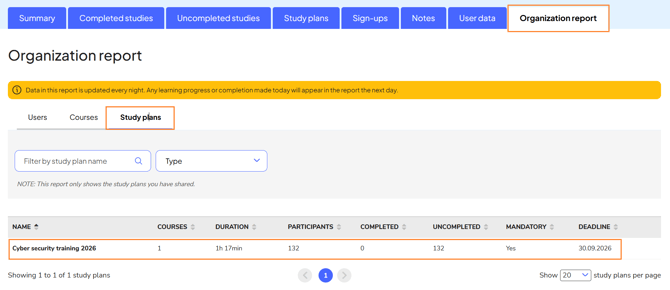
- Go to Organization Reports
- Open the Study Plans tab
-
You can:
- Search study plans by name
- Filter:
- Mandatory / Non-mandatory
- Sort by:
- Name
- Number of courses
- Duration
- Users
- Completed / incomplete
- Deadline
🔍 How do I view study plan details?
- Go to Organization Reports ➡️ Study Plans
- Click a study plan to view:
- User details
- Progress (%)
- Completion date
- Sharing date
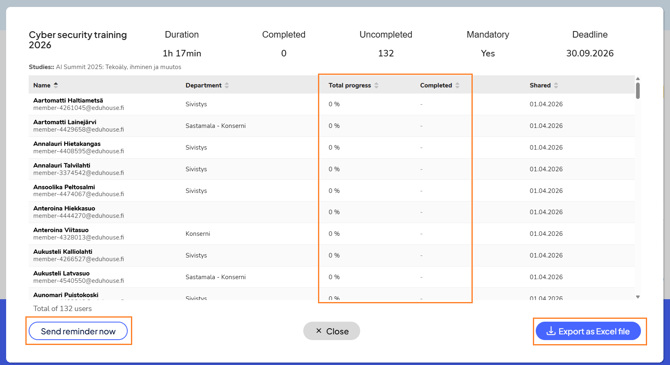
💡 You can send reminders directly from this view by clicking "Send reminder now" to users who have not completed the study plan yet.
💡 You can export the data by clicking "Download as Excel file".
👉 Read also the user guide: What are Mandatory Study Plans?