![KG logo sininen.png]](https://support.eduhouse.com/hs-fs/hubfs/KG%20logo%20sininen.png?height=40&name=KG%20logo%20sininen.png)
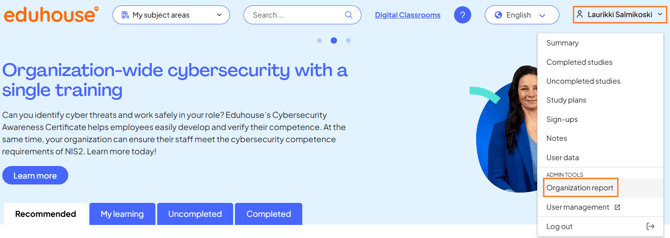
You can find the Organization Report under Admin Tools in your profile menu. From there, you can choose between three tabs: Users, Courses, and Study Plans.
Users Tab
The Users tab displays information about users in your organization who have registered for the Eduhouse service.
User data is updated overnight, meaning that today's data will be available the following day. The exception is Digital Classrooms, for which data is updated 2–3 days after the training.
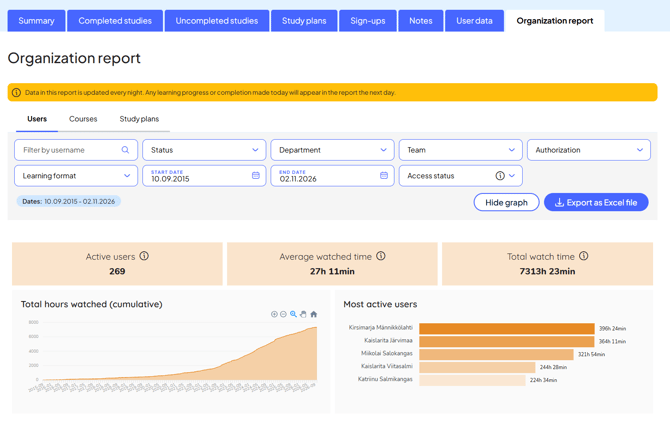
By default, the Users tab displays your organization's entire usage history. You can adjust the default settings using filters. Your filter selections are automatically reset when you log out, so remember to check the filters each time you log in.
Filters
In addition to searching by a user's name, you can filter the data in several other ways.
- Status: Choose between "Active" and "Inactive". To view all users, make sure both options are selected.
- Active: A person who has started or completed courses during the selected period. Their activity is reflected in either courses in progress or completed courses.
- Inactive: A person who has registered and logged in to the service but has not yet started any courses.
- Department and Team: These filters display information based on the departments and teams associated with users in our systems. This information is provided by your organization's administrator and may not necessarily reflect your organization's official hierarchy.
- Authorization: This filter displays users' ongoing or completed KLT/PHT/TNT courses that contribute towards required authorization hours.
- Learning Format: Use this filter to view activity related to Digital Classrooms, video courses, and podcasts.
- Filter by Date: Select your preferred date range. By default, the report displays the entire period during which your organization has used the Eduhouse service.
- Access Rights: Choose between "With Access" and "Without Access". To view all users, make sure both options are selected.
- Active Access: A person who currently has valid access to the Eduhouse service.
- No Access: A person who does not currently have valid access to the Eduhouse service.
Charts
The Organization Report also provides visualized user data based on your selected filters, including:
- Completed courses
- Courses in progress
- Total viewing time
- Hours watched (cumulative)
- Most active users
💡 Tip: You can hide the charts if needed and download your filtered data as an Excel file.
Table
The table provides user-specific information that you can sort by:
- User name
- Department
- Number of completed courses
- Number of courses in progress
- Total viewing time
Courses Tab
The Courses tab displays course information for all users in your organization who have registered for the Eduhouse service.
Filters
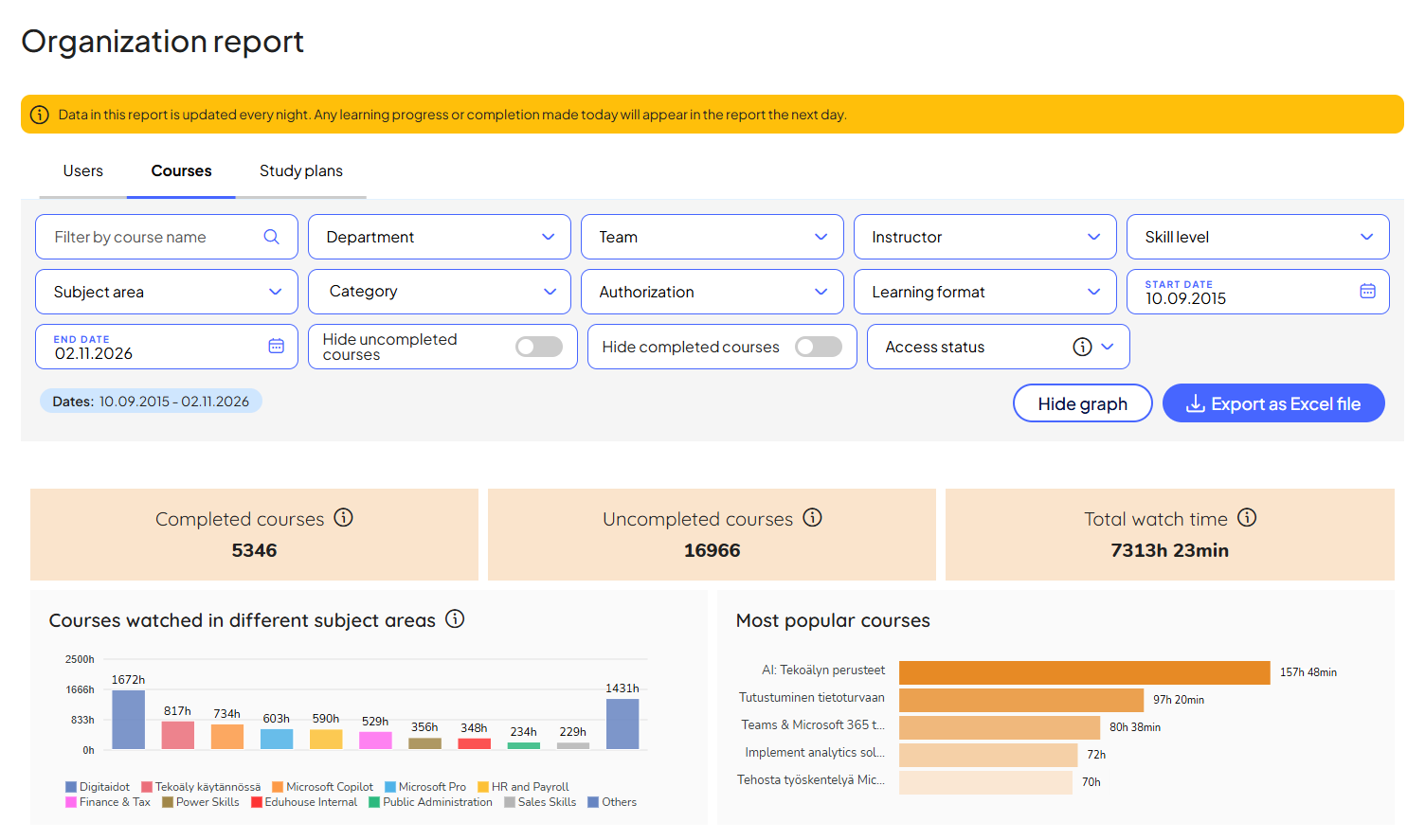
You can use the following filters to explore users' course information:
- Department and Team: These filters display information based on the departments and teams associated with users in our systems. This information is provided by your organization's administrator and may not necessarily reflect your organization's official hierarchy.
- Filter by Course Name: Enter a course name in the search field.
- Instructor: Enter an instructor's name in the search field.
- Skill Level: Select one or more skill levels.
- Learning Format: Select one or more learning formats. We offer a variety of learning formats designed to support employees throughout their learning journeys:
- Video Courses: Pre-recorded training videos, often divided into short, bite-sized sections that you can watch anytime, anywhere.
- Digital Classrooms: Instructor-led training sessions held in Microsoft Teams. Participants must register in advance through the Eduhouse service.
- Events: Free webinars covering current topics. You can register through the Eduhouse service or our website.
- Podcasts: Audio recordings featuring leading experts discussing current topics.
- Subject Area: Select one or more subject areas.
- Category: Select one or more categories.
- Authorization: Select one or more KLT/PHT/TNT continuing education hour categories.
- Filter by Date: Select your preferred date range. By default, the report displays the entire period during which your organization has used the Eduhouse service.
- Hide Courses in Progress: Hide users' ongoing courses from the report if needed.
- Hide Completed Courses: Hide users' completed courses from the report if needed.
- Access Status: Choose between "With Access" and "Without Access". To view all users, make sure both options are selected.
- With Access: A person who currently has valid access to the Eduhouse service.
- Without Access: A person who does not currently have valid access to the Eduhouse service.
💡 Tip: You can download your filtered data as an Excel file.
Charts
The Organization Report also provides the following visualizations of course activity:
- Completed courses (all users)
- Courses in progress (all users)
- Total viewing time (active users)
- Courses viewed by subject area
- Most popular courses
Table
The table provides course information that you can sort by:
- Name
- Learning format
- Duration
- Subject area
- Category
- Completed courses
- Courses in progress
- Total viewing time
Study Plans Tab
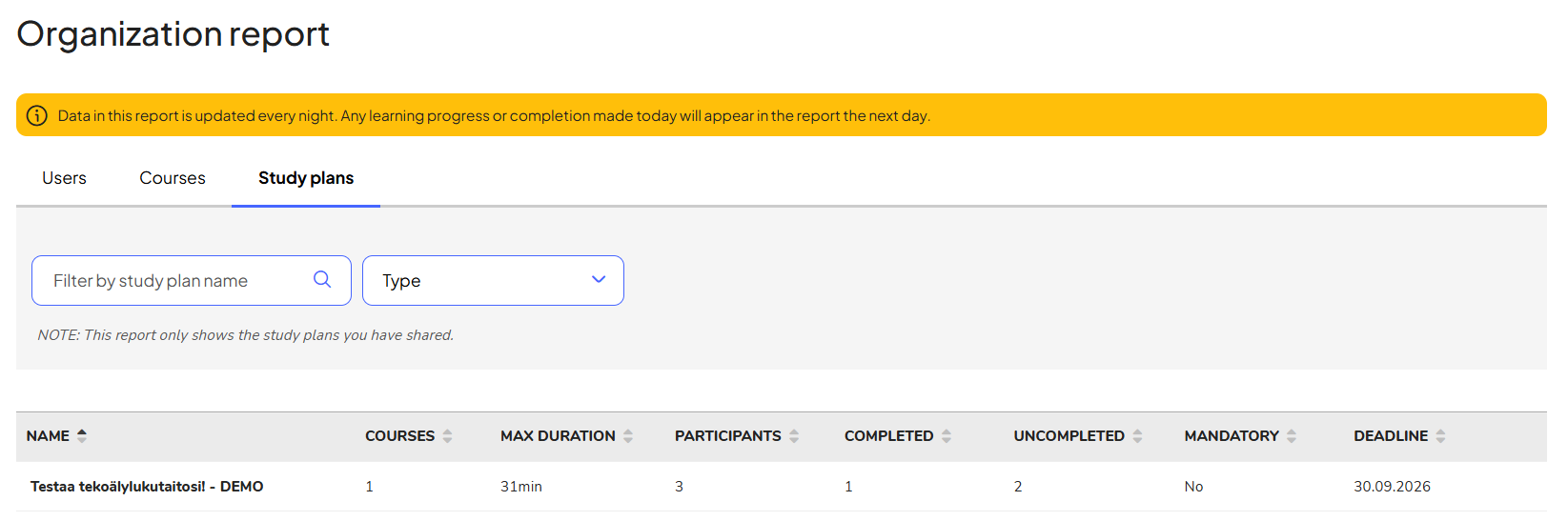
The Study Plans tab allows you to track the progress of learning plans you have assigned to users.
Filters
- Filter by Study Plan Name: Enter a study plan name in the search field
- Type: Filter study plans based on whether they are marked as mandatory or optional
💡 Tip: Learn more about mandatory study plans here: Mandatory Study Plans.